

Invoices
Invoices in Enso are generated to bill your customers for products or services.Invoices can be created automatically or manually, and each invoice goes through a defined workflow before it is finalized.
How Invoices are Created
- Auto-generated: Invoices are automatically created when a contract is set up. All such invoices start in the Draft stage.
- Manual creation: You can also create invoices manually by navigating to Invoices > Create Invoice in the dashboard.
Invoice Lifecycle
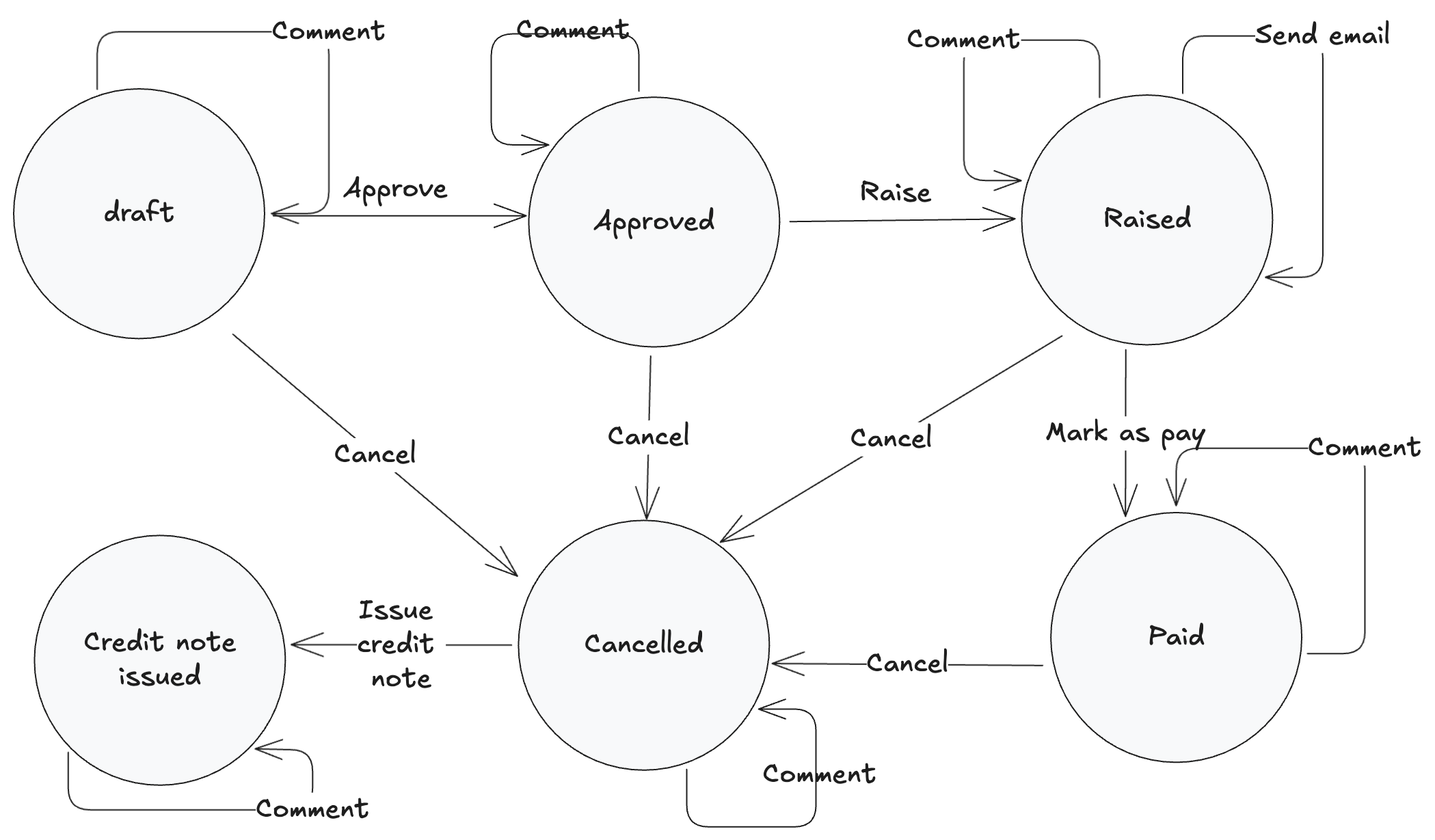
Invoices move through several states as part of their lifecycle:- Draft: Initial state. Invoices can be edited in this stage.
- Approved: Invoice is reviewed and approved.
- Raised: Invoice is finalized, assigned an invoice number, and the PDF is generated.
- Paid: Payment has been received.
- Cancelled: Invoice is voided.
- Credit Note Issued: A credit note has been issued against the invoice.
Invoice Workflow
Key Points
- An invoice number is assigned when the invoice is Raised; this is also when the invoice PDF is generated.
- Invoices can be edited while in the Draft stage.
- The invoice numbering prefix can be configured under Settings > Invoice Templates.
- The same HTML template is used for both invoices and credit notes. You can customize or upload any HTML-based template under Invoice Templates.
Credit Notes
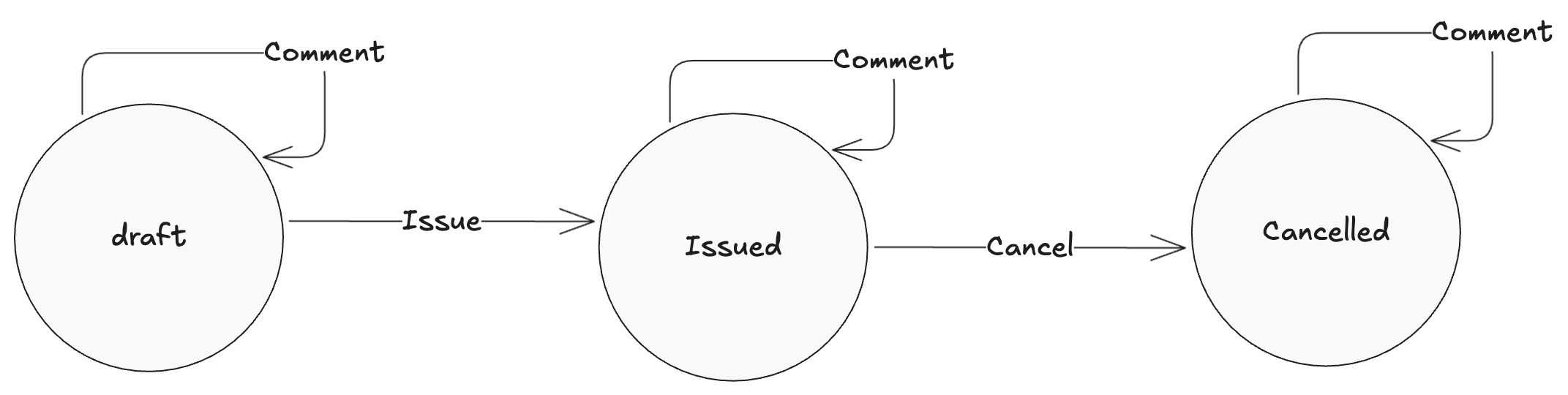
A credit note is issued to reverse or adjust an invoice, typically after an invoice is cancelled.Credit Note Workflow
Credit notes have their own lifecycle:- Draft: Initial state; can be edited and commented on.
- Issued: Credit note is finalized and issued.
- Cancelled: Credit note is voided.
Key Points
- Credit notes can only be issued after cancelling an invoice.
- Credit note numbering starts with CN- by default, unless configured otherwise in Invoice Templates.
- The same HTML template is used for both invoices and credit notes, and can be customized under Settings > Invoice Templates.
For more details on setting up invoice templates, see One time setup.